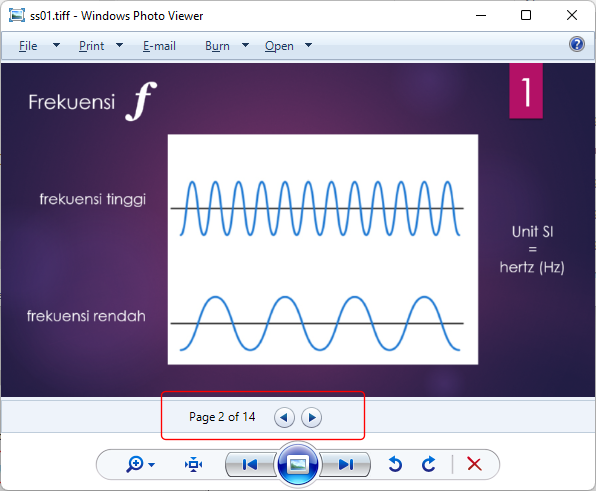
You are attending an online presentation and you want to take screenshots of the presentation. What you would usually do is to copy and paste the screenshots into a graphic application.
Using Easy Clipboard, you simply take the screenshots as the presentation is on-going. Each screenshot will be stored by Easy Clipboard automatically.
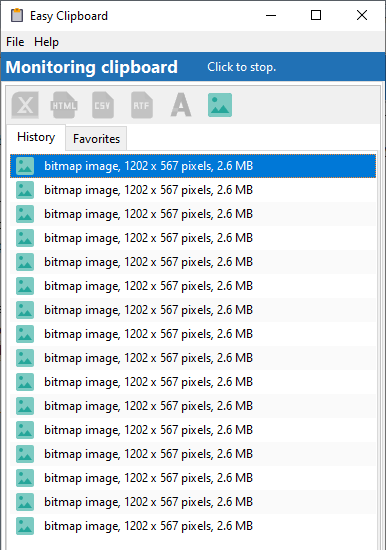
When you want to export the images, select all the images and either copy them to the clipboard, or save the images to disk.
Copying images to the clipboard
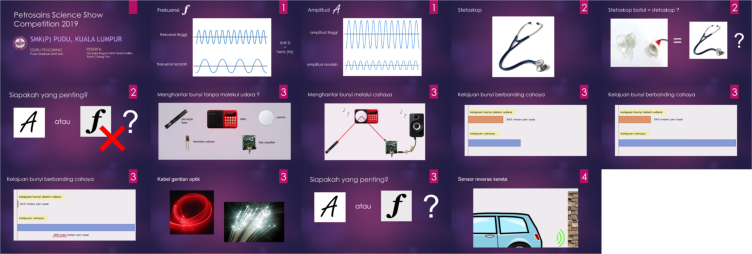
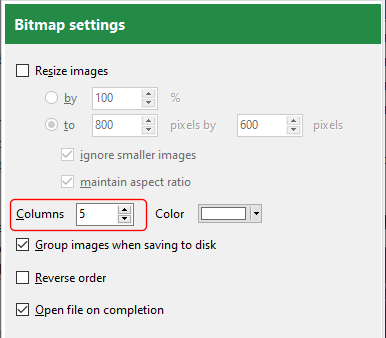
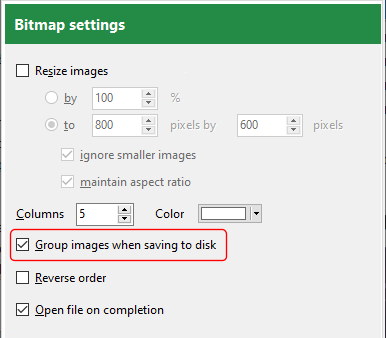
The selected images will be arranges in a grid layout. You can adjust the number of columns used in the Settings for the image format.
Saving images to disk
If you choose to save the selected images to disk, you can save all the selected images as a single image arranged in a grid format, or you can save each image to a different file. The Group images when saving to disk option determines which method is selected.
If you select the TIFF or PDF formats, the images will be automatically combined and stored in a single file.