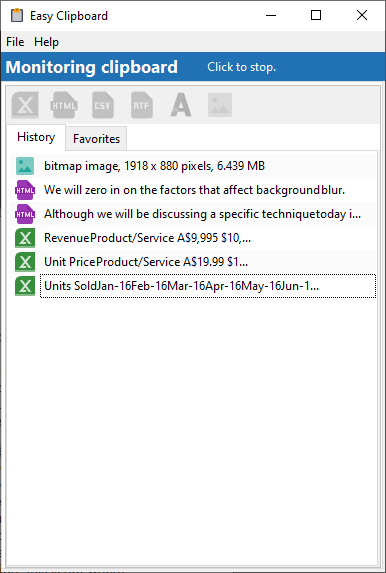
When new items are copied from your application, Easy Clipboard will display the copied content in the History window. For e.g. we copied some Excel cells, PDF text, and images to the clipboard. Easy Clipboard displays the following in the History list.
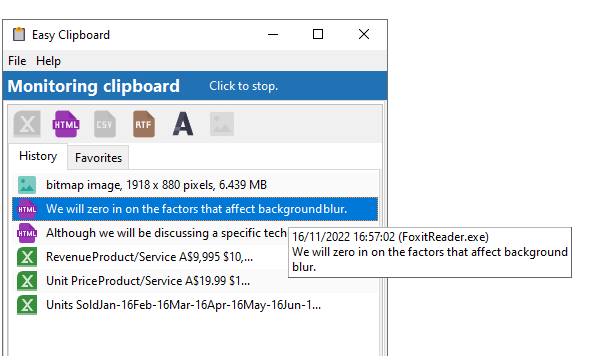
The hint for each item will display further details of each clipboard item.
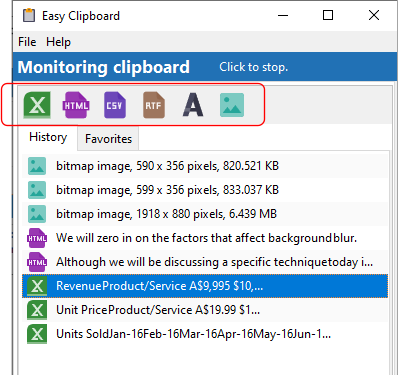
When you click on any of the items, the buttons for the available formats you can copy the content to are enabled. For e.g. if we click on an Excel content item, the Excel, HTML, Rich Text Format, CSV, plain text, and image items are enabled. This is because Excel has copied your content to the clipboard in those formats.
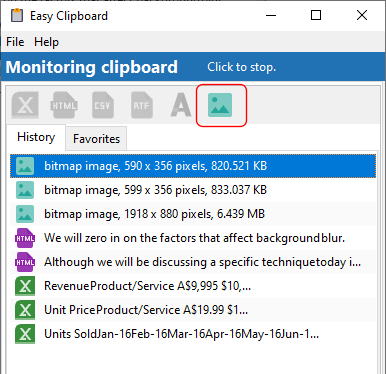
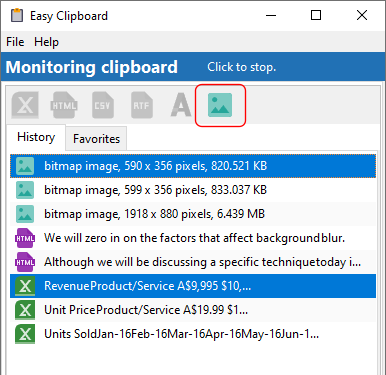
Similarly, if we click on a bitmap image item, only the image button is enabled.
You can select multiple clipboard items using a combination of the CONTROL or SHIFT keys with the mouse. When you select multiple items, only the common formats available to the selected items can be processed. For e.g. if we select the Excel item and the bitmap item, then only the bitmap format is available for us to copy or save.
To copy the selected items to the clipboard or save to disk, click on the relevant format button. For e.g. we select 3 Excel content items:
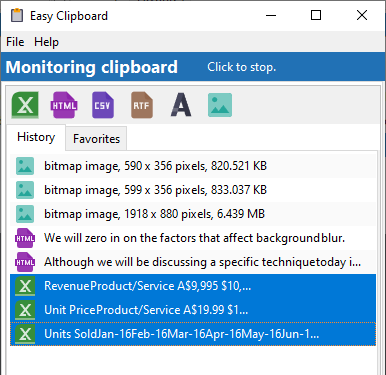
then click on the Excel data button.
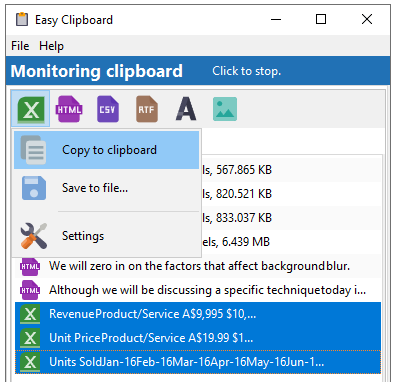
We can now choose to merge the 3 Excel items and copy the content to the clipboard or save to a file. We can also open the settings for the Excel format and adjust the settings to fit our requirements.