|
Introduction |
|
|
Using SQL Select |
|
|
SQL editor
The
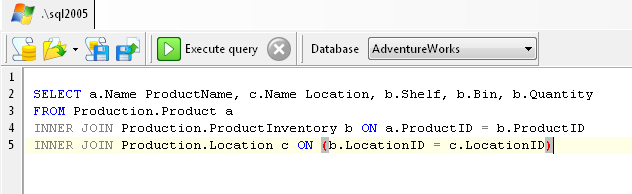
SQL editor is where you enter your SQL commands. You can load a SQL
script by clicking on the  (Load
script...)
button
on the toolbar. To save a script, click on the (Load
script...)
button
on the toolbar. To save a script, click on the  (Save
script... )
toolbar button. (Save
script... )
toolbar button.
When you want to run a SQL command, select the block of text or use
active text selection, then click on the  (Execute
query)
toolbar button, or F5.
Any errors raised will be displayed in the Messages
tab. (Execute
query)
toolbar button, or F5.
Any errors raised will be displayed in the Messages
tab.
In addition to features offered by a text editor, the editor offers
the following:
|
|
You
can run SQL queries in 2 ways. The regular way is to select the
block of SQL text to run, then click on the (Execute
query)
toolbar
button, or F5.
The alternative is to place your caret anywhere in the SQL text,
and click on the (Execute
query)
toolbar button, or F5.
When you do not explicitly select a block of text, SQL Image Viewer
will look for a block of text at the carets' position, surrounded
by blank lines. See Editor command
selection for details.
|
|
|
The
editor allows you to create up to 10 bookmarks. To create a
bookmark, press CTRL-SHIFT-[0
- 9]. To
go to a bookmark, press CTRL-[0
- 9]. E.g.
to place bookmark 1 at the current line, press CTRL-SHIFT-1.
|
|
|
A
bookmark indicator is displayed on that line. To jump to that
bookmark from anywhere in the editor, press CTRL-1.
|
|
|
You
can select a block of text by highlighting it, then by clicking
anywhere in the selected block, you can then drag and drop the
selected block to anywhere else in the editor.
|
|
|
When
the caret is at the beginning or end of a block delimited by
brackets, the corresponding bracket is highlighted.
|
|