The DB Doc HTML and CHM reports share the same templates. The report is generated by means of a Pascal-like scripting engine, so every single element is customizable. The DB Doc help file contains a class reference for every schema element.
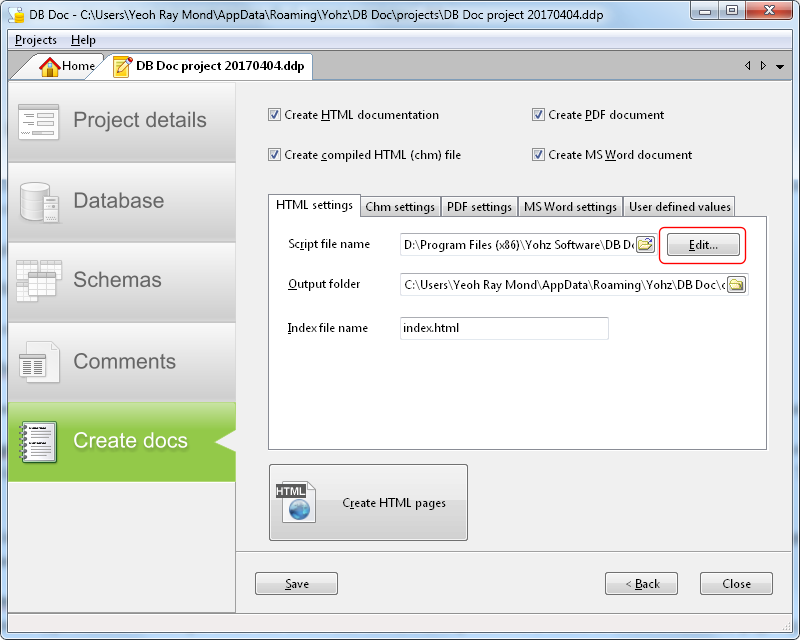
To edit the template, click on the Edit button next to the script file name value.
This brings up the script editor, which you can modify.
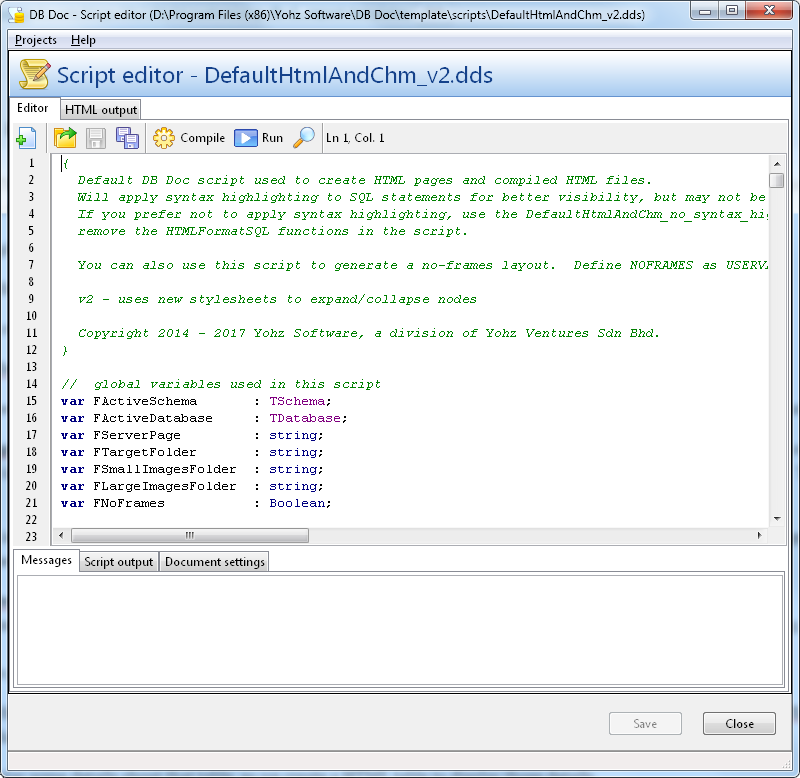
The script runs roughly in this order of procedures:
Main > CopyTemplateFiles > CreateHTMLPages
The Main procedure sets up some global values for the script, and also sets up the output files depending on whether it is generating a HTML or CHM file.
The CopyTemplateFiles procedure copies the icons and stylesheets from the DB Doc template folder into the selected HTML output folder. If you want to modify the default icons, just replace the image files in the DB Doc images template folder (e.g. C:\Program Files (x86)\Yohz Software\DB Doc\template\images\). The HTML and CHM outputs use only the 16×16 and 32×32 images.
The main work is performed in the CreateHTMLPages procedure. This procedure creates the individual schema elements pages by calling the relevant procedures. To generate the pages for each type of schema element, there are usually 3 steps:
- the CreateListItemLink procedure is called to create the table of contents navigation structure for that element type
- if that element type consists of multiple items like tables and views, a listing function is called to create a summary page e.g. CreateTableListingPage for tables, CreateViewListingPage for views
- the details page for that element type is called e.g. CreateSchemaPage for schemas, CreateTablePage for tables
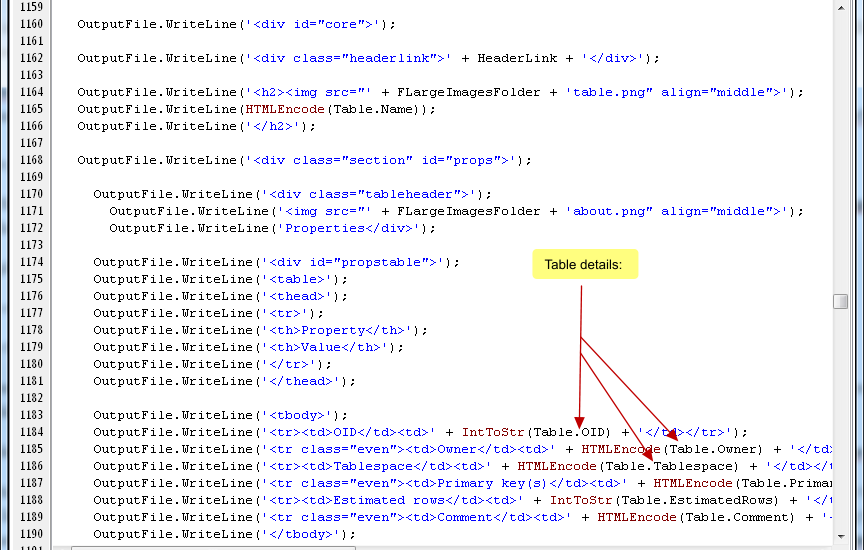
Within each of the procedures, you can modify the script to display different values depending on your needs. Take the CreateTablePage function for example. At the beginning, we create the HTML file for that table, and insert the standard header elements.
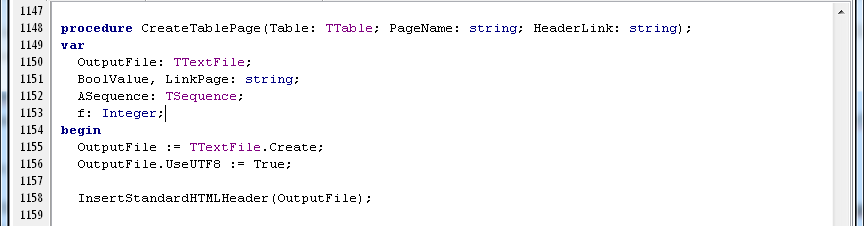
We want to display some details about that table, so we create a HTML table to display those details.
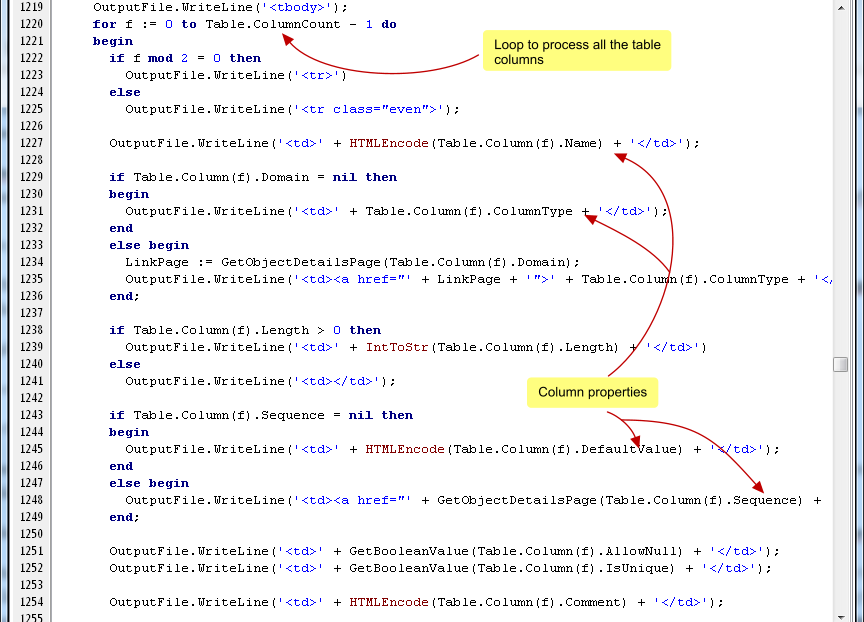
Next comes the columns. We create a HTML table, set up its columns, and then iterate through all the columns, and display each columns’ properties.
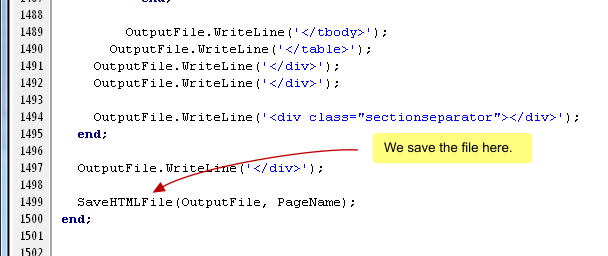
The same process is repeated for indexes, check constraints, unique constraints, triggers, and foreign keys. You can modify any element you want simply by modifying the script. Once the page for this table has been completed, it’s then saved as a HTML file.
Every schema element that has a HTML page is named using a specific naming convention provided by the GetObjectDetailsPage function.
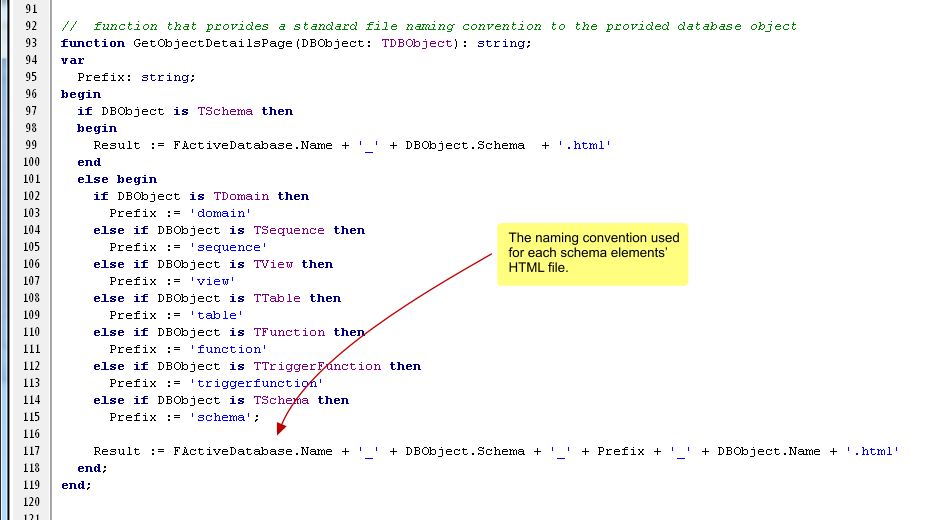
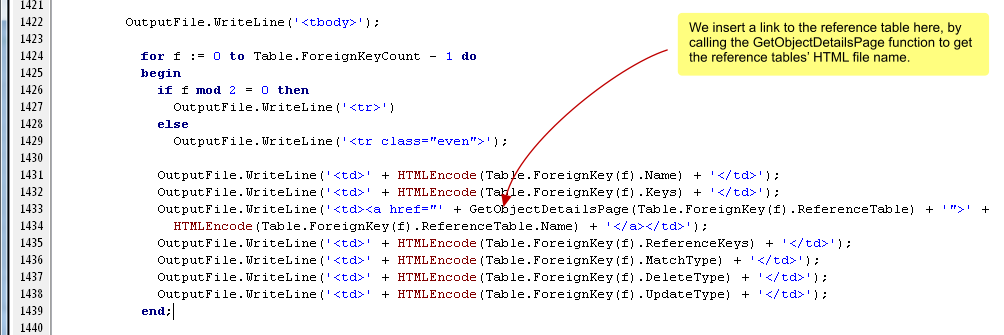
Using this function, you can get the name of a HTML page for a particular schema element, simply by passing the element as a parameter to this function. For example, in the CreateTablePage function, when listing out the foreign keys, we display a link to the reference table using the GetObjectDetailsPage function by passing the reference table as the parameter. It does not matter that the page may not have been created yet, because when it does get created, it will use the same naming convention provided by the GetObjectDetailsPage function.
So that’s generally how DB Doc uses scripting to create your HTML and CHM reports. If you have had any experience coding or writing scripts, you should be able to modify the scripts quite easily. As mentioned earlier, the class reference in the help file would assist you greatly in seeing what methods are available for each schema object type.
If you need any assistance customizing the template, please do drop us a line at support@yohz.com.