Author Archives: bloggyadmin

Restoring a SQL Server bak file that’s password protected

Here at Yohz Software, we offer a service to remove passwords from a SQL Server backup files (or BAK files) that are password protected.  Please note that this is not the same as decrypting an encrypted backup.

Prior to SQL Server 2012, you could protect a backup with a password using the PASSWORD option e.g.

BACKUP DATABASE mydb TO DISK = ‘g:\backups\mydb.bak’ WITH PASSWORD = ‘mypassword’

You would then need to supply the password when you restored the backup.  An interesting point is that while the backup itself is password protected, the data in the backup file was still identical to that found in a backup file that was not password protected.  Thus, using a text editor, you could still inspect the contents of a password protected backup file.

The PASSWORD option was removed in SQL Server 2012 onwards, and in current versions of SQL Server, you can encrypt the backup file.  Now, the data in the backup file is truly protected, and you need the correct certificate to be able to restore the backup.  This is a much better and secure option compared to the old PASSWORD option.

Now, if you want to restore an old backup file that’s password protected, but you no longer have the password, we can help you with that.  Contact us at sales@yohz.com for a quote.

Exporting and extracting images and files from Microsoft Access databases

Using OLE Object column types, there are 3 ways you can store images and files in a Microsoft Access database, or in a database (e.g. SQL Server) used by a Microsoft Access front-end.

  • embedding

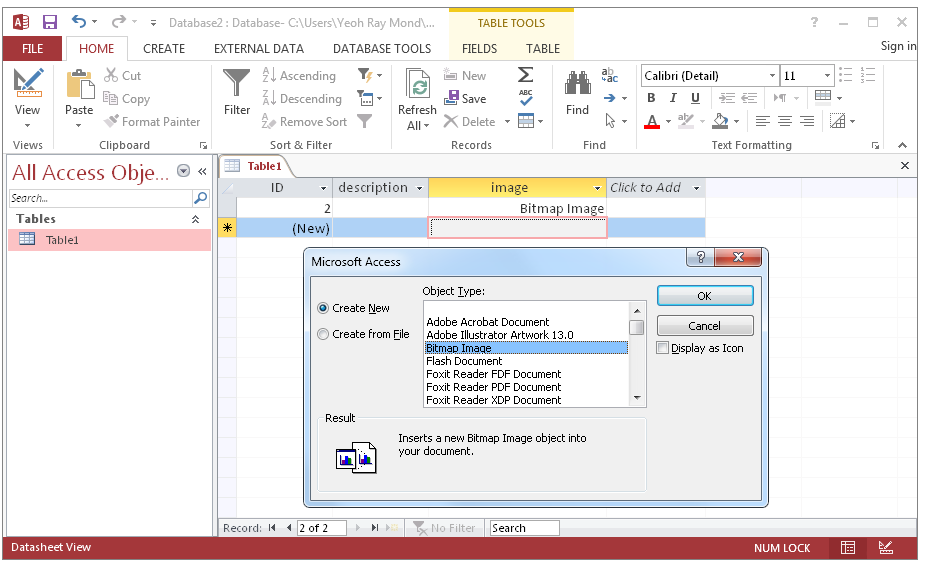
Embedding involves creating the image/file directly using the associated OLE Server application.  For example, if I choose to embed a bitmap image, Access will open Paint for me to create my bitmap image, and save that image into that field.
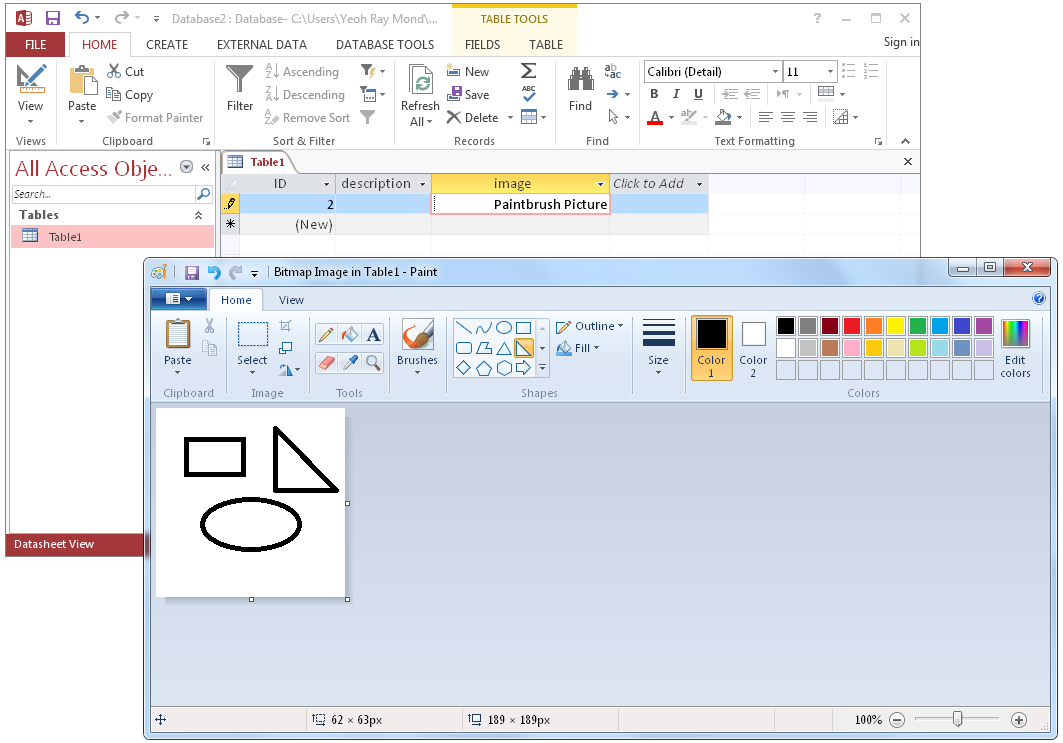
  • insert from a file

If you already have the image/file you want to store in your database, you can insert the file into your Access database directly using the Create from File option.  Access then copies the file into the field.
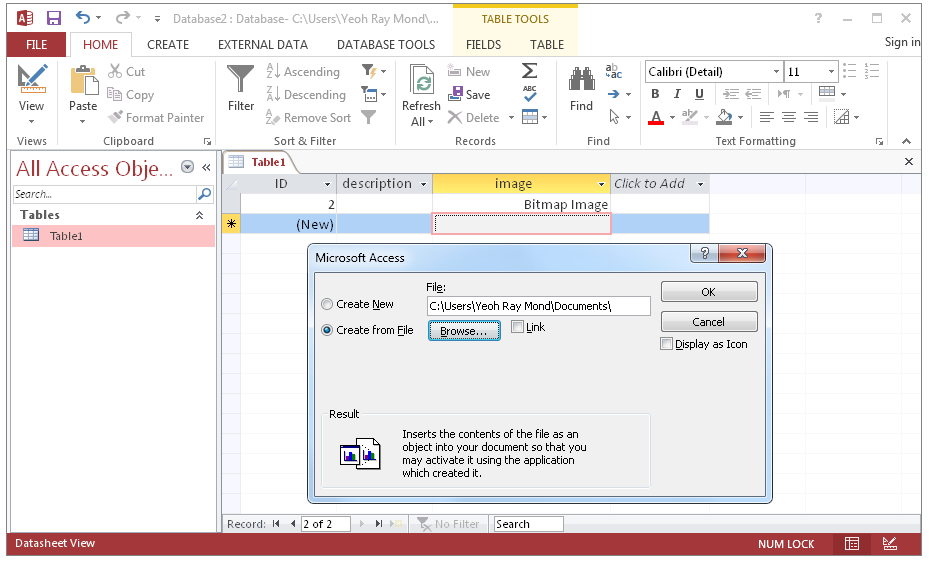
  • link to a file

Similar to the above, but this time, the image/file is not stored in the database.  Access just creates a link to the external file, much like a hyperlink in your browser.
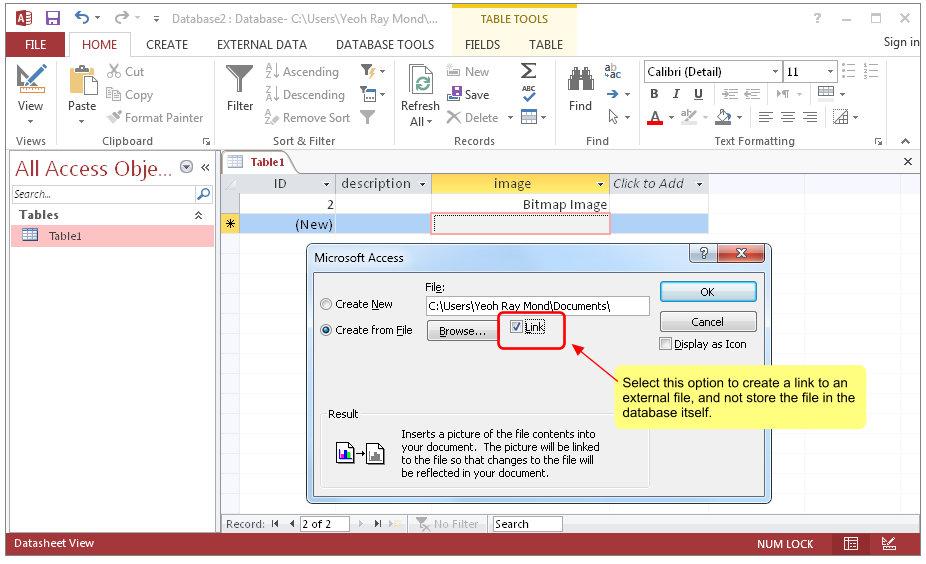
If you store your images/files using the first 2 methods, then Microsoft Access adds additional data to your image/file, so that it knows which application to use to open that particular image/file.  This means that if you extracted the data from your database, it will appear different from your original file.

For example, let’s insert an image into an OLE Object field.  The image file is 18.7 Kb in size.
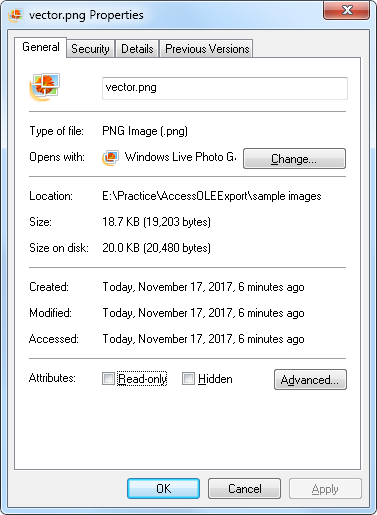
Once inserted into the Access database, the size has increased to 19.192 Kb.
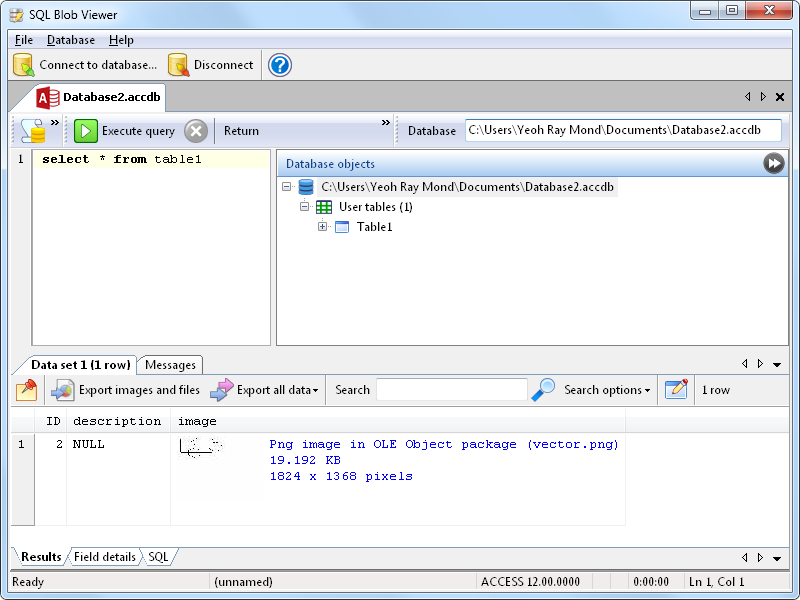
The increase is due to the additional data added by Access.  If you now extract the data as is from the database, it cannot be opened by Paint because of the additional data.  The PNG data is preceded by OLE headers.

This is a common issue faced by Microsoft Access users – when they want to extract images and files from OLE Object fields to their original format, there isn’t a way they can do this easily.  Every image/file has been modified by Access.  You have to open each image/file in Access, then save the item to disk manually.

This is the reason we created Access OLE Export.
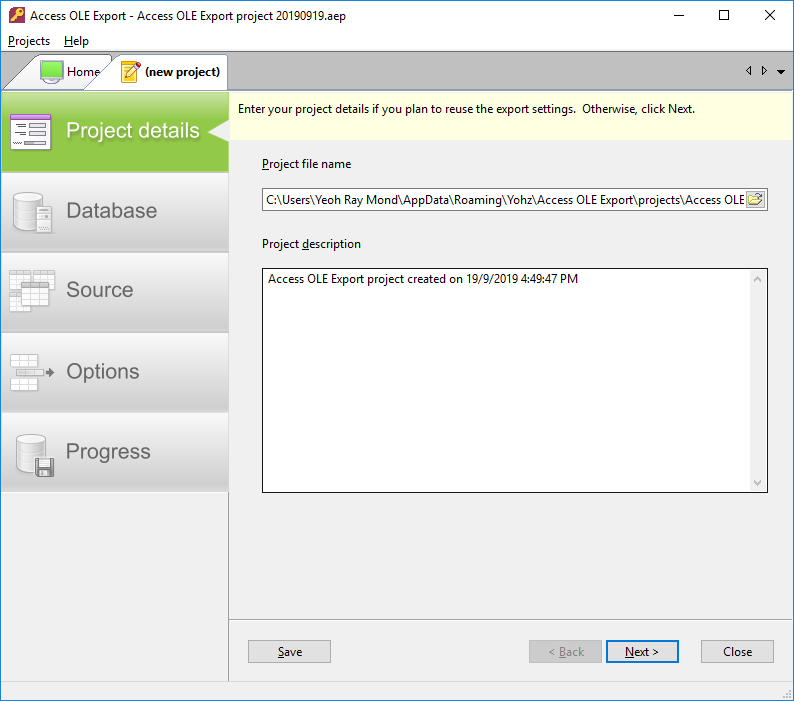
In just 4 simple steps, Access OLE Export will extract and export your embedded images and files to disk, stripping out the additional data added by Access.  The exported images and files can then be opened ‘normally’, using the appropriate application.

If you require more control over what is exported, SQL Image Viewer is another option.  SQL Image Viewer allows you to inspect your data before exporting them, but requires that you be able to write SQL scripts.
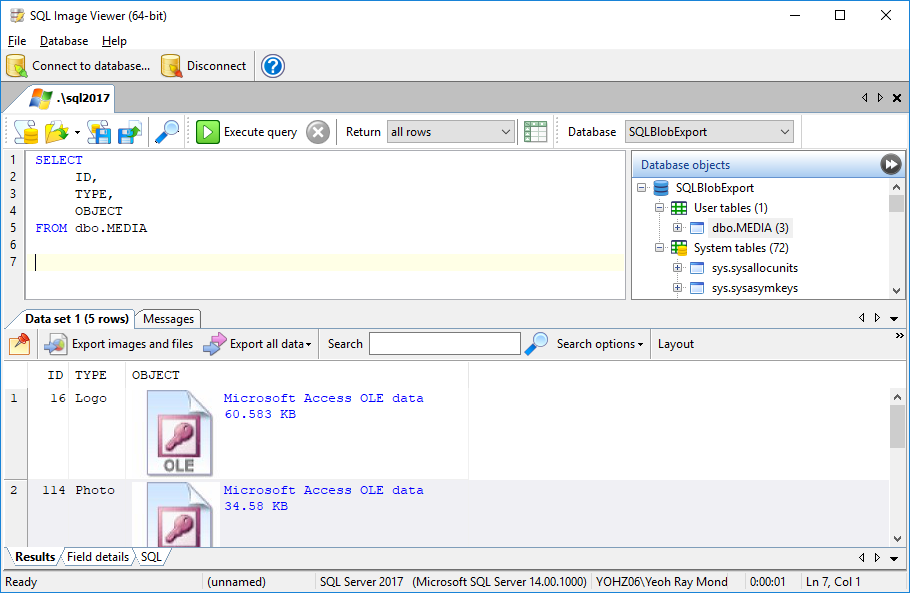
There may be situations where both products are unable to identify embedded images correctly.  This may be because the registered OLE Server for that content type is not yet supported.  In these cases, send us (at support@yohz.com) a sample of the embedded data, and we will add support for that OLE server type.

Download a FREE 14-day trial of Access OLE Export or SQL Image Viewer now to extract embedded objects from your Access databases the easy way.

If instead you need to insert or update OLE-Object data in your databases, have a look at Access OLE Import.  Using Excel spreadsheets as the input data, you can easily add and update your embedded or linked OLE-Object data.

You can purchase our products on this page.

See also:
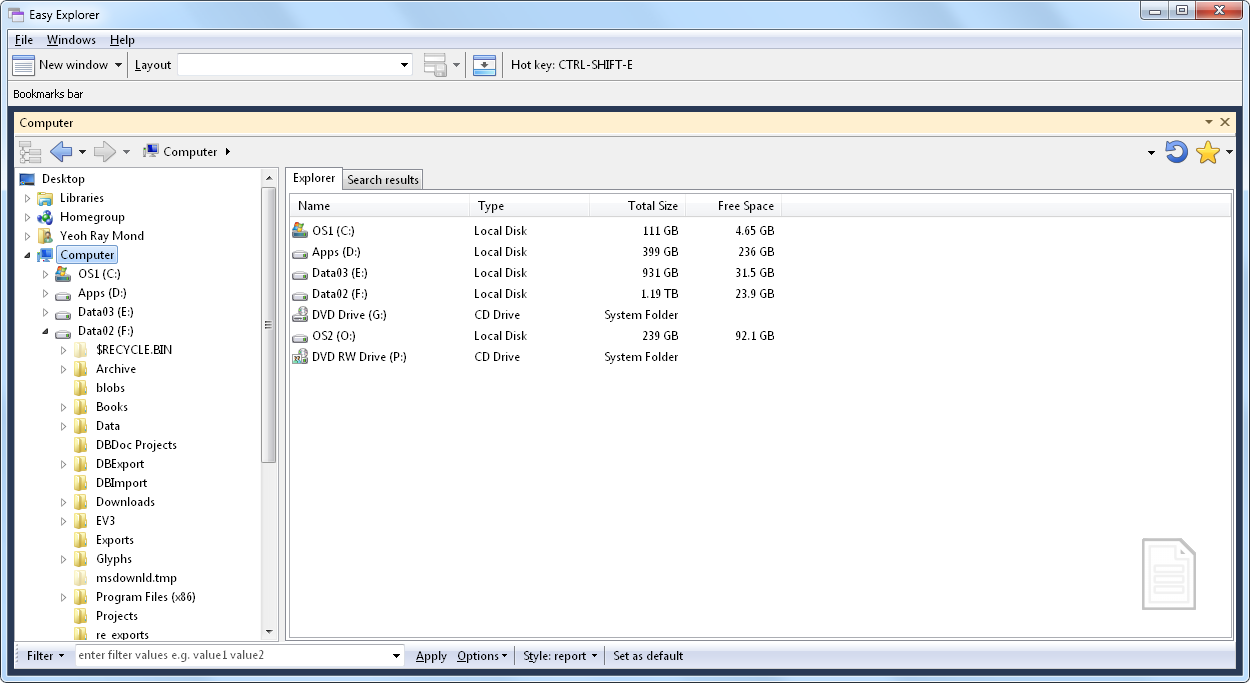
Using Easy Explorer

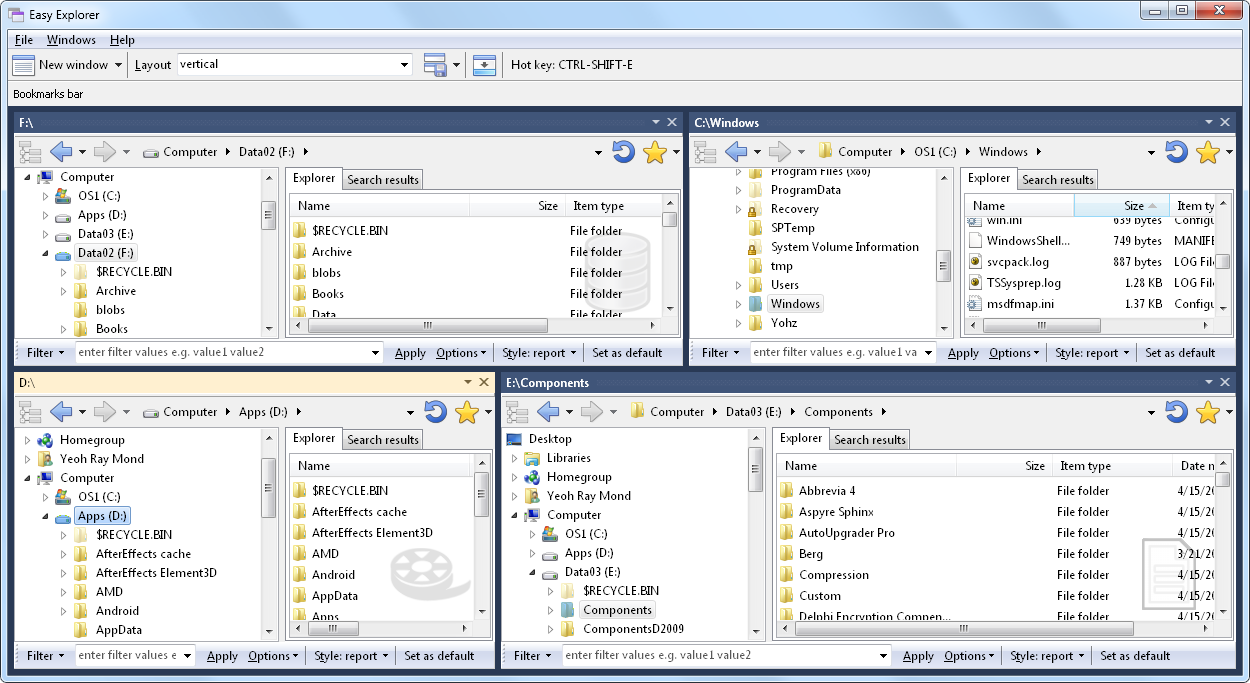
Do you keep a bunch of Windows Explorer instances open all the time, each accessing a different folder, simply because you need to access them frequently?  Well, Easy Explorer may be a better alternative for you.  Easy Explorer is our product that allows you to work with multiple Explorer-like windows within a single application.

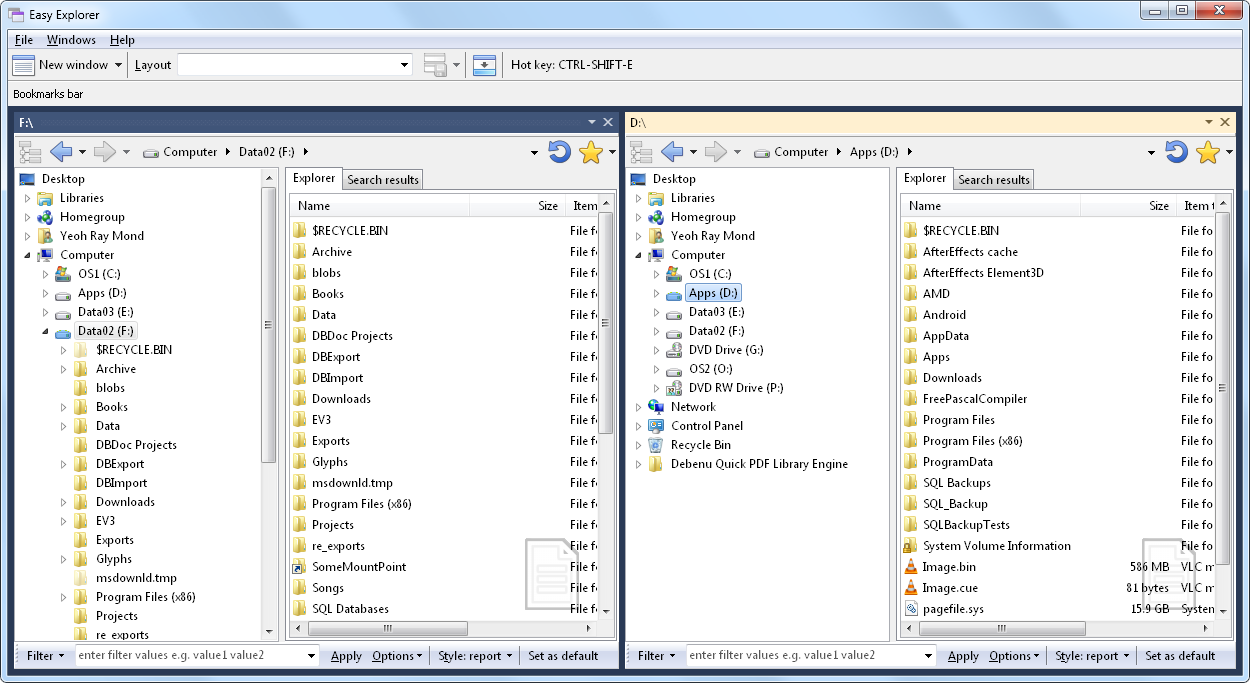
Easy Explorer starts off simple enough – with a single window.

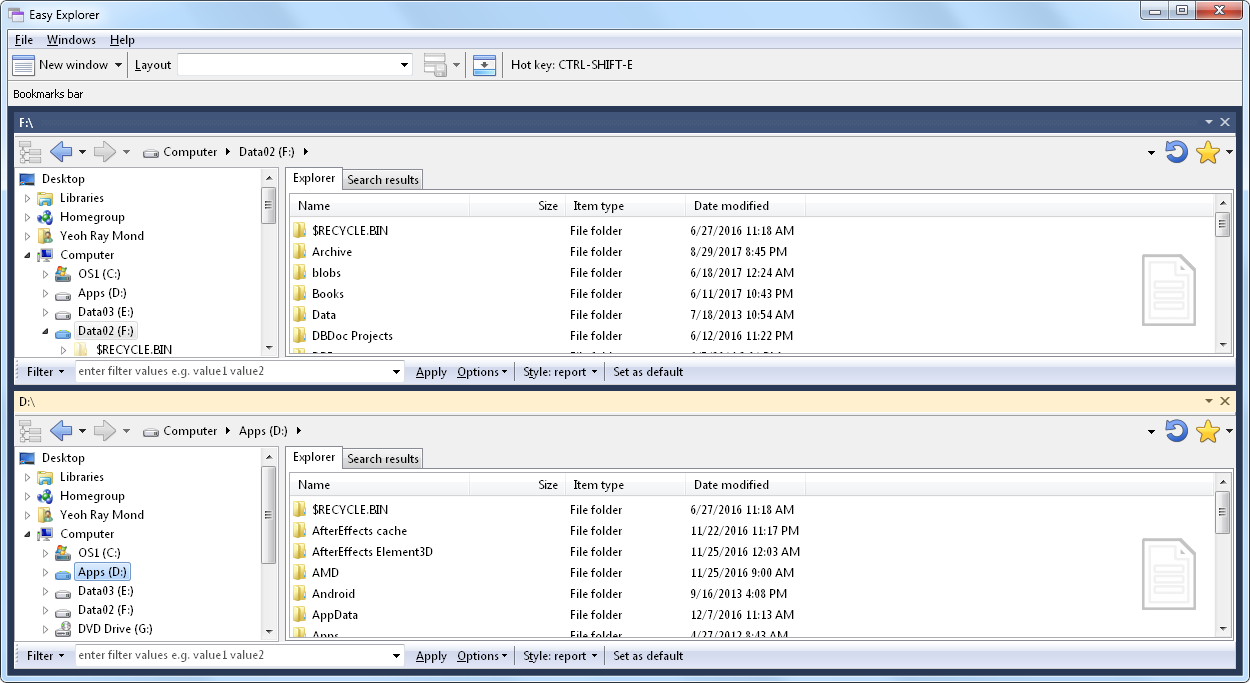
Say you create another window to access a different folder.  You now have easy access to both folders within Easy Explorer.

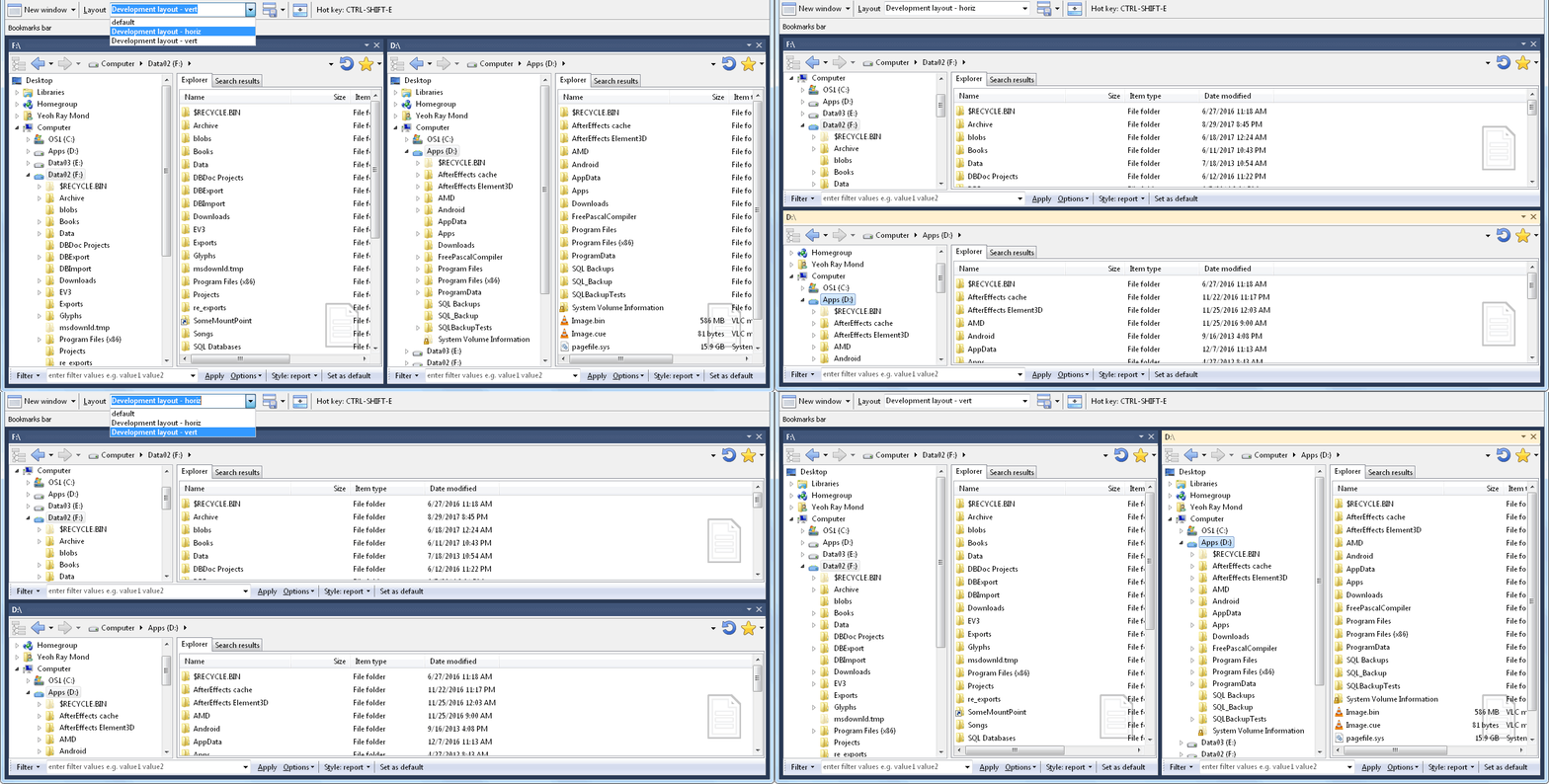
You can rearrange the windows in various layouts to suit your needs

save the different layouts, and restore the layouts by simply selecting the desired layout.

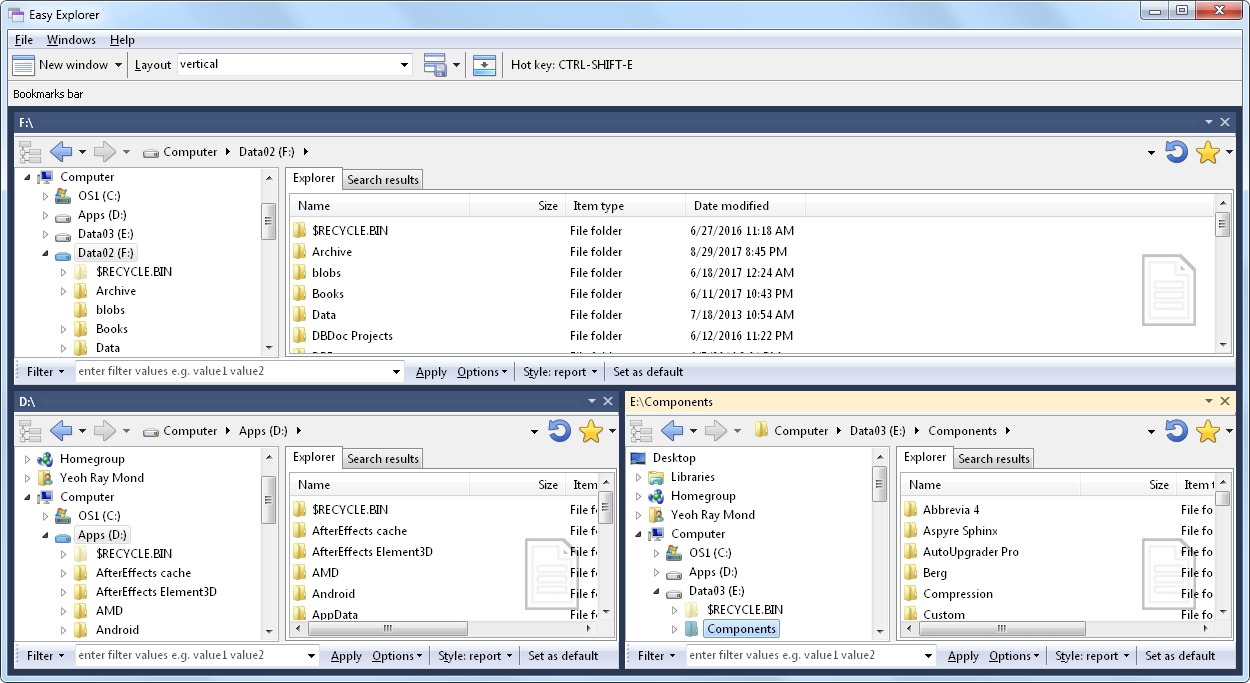
Create as many windows as you require, in whatever layout suits you.  You’re only limited by the size of your monitor.

In addition to customizing layouts, Easy Explorer also allows you to:

  • use filters so that Easy Explorer only displays the files you want to see as you open your folders
  • use regular expressions as filter values
  • search for files using regular expressions
  • create bookmarks to frequently used folders

Learn more about Easy Explorer here.

The Explorer bits in SQL BAK Explorer

The left panel in SQL BAK Explorer is essentially a Windows Explorer clone, and shares the same features as found in Easy Explorer.  In this blog, I’ll describe some of the cooler things you can do in the Explorer panel.

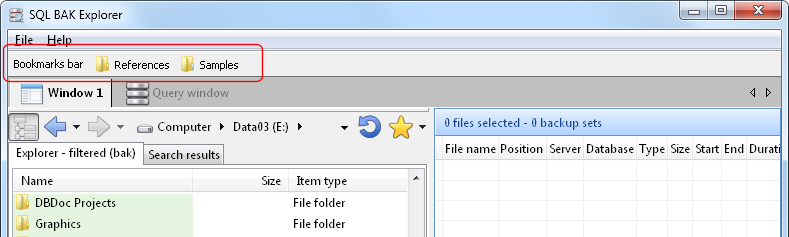
Bookmarks!  If you access a folder frequently, simply drag the folder from the Explorer window to the ‘Bookmarks bar’ area.  A bookmark is created for you.  Simply click on that bookmark to open the folder.


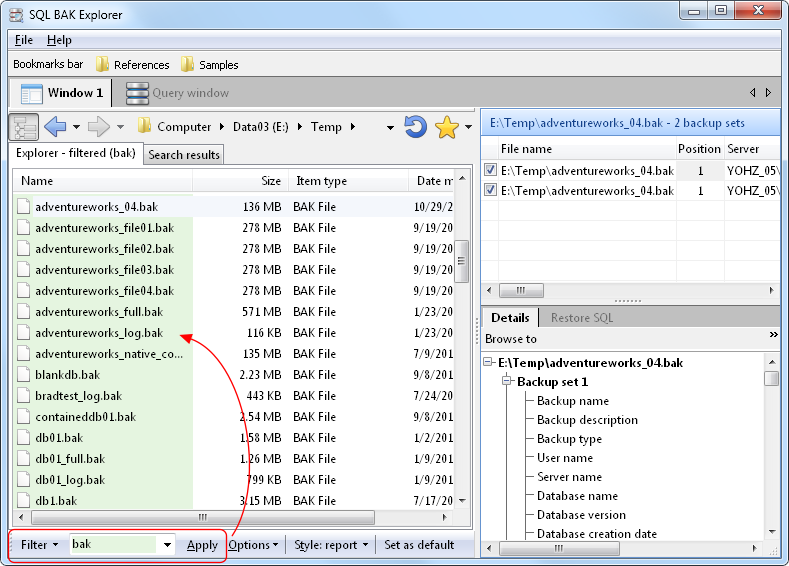
Filters!  If you want the Explorer window to display only files with the bak extension, simply enter bak in the filter window and click Apply.  Now, only bak files will be displayed in the Explorer window in every folder you browse to.


Default layouts!  Say you want the explorer window to be of a certain size, the default folder to be a particular folder, the backup summary panel to be this size, the SQL Window editor area to be that size etc.  First, set up the panels exactly as how you want them to appear every time when SQL BAK Explorer starts.  Then click on the Set as default button.


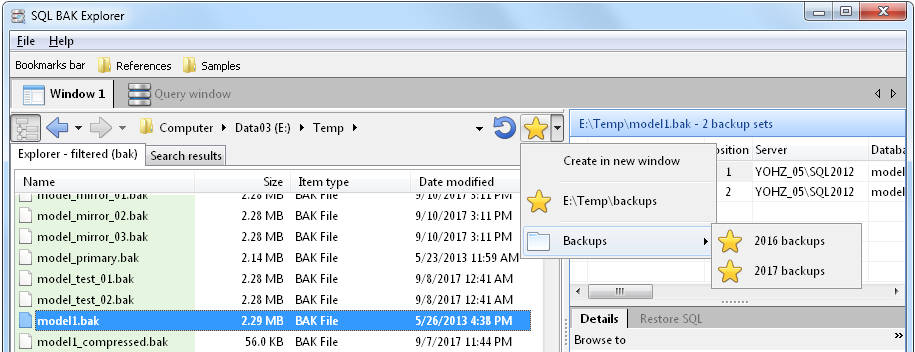
More bookmarks!  In addition to the bookmarks bar mentioned above, you can also maintain bookmarks in a menu.  You can group bookmarks in categories, to make them easier to organize.

SQL BAK Explorer 2.0 released

We just released SQL BAK Explorer 2.0 today, and the significant addition is that of a Query Window.

As some of you may know, SQL BAK Explorer stores backup details of the files it reads in a SQL Server Compact database.  There are 5 tables used to store the details i.e.

  • backupset
  • backupmediaset
  • backupmediafamily
  • backupfile
  • backupfilegroup

The structure of these tables are similar to the same tables found in the msdb database, so if you’ve ever queried for backup details in msdb, you’ll feel right at home here.

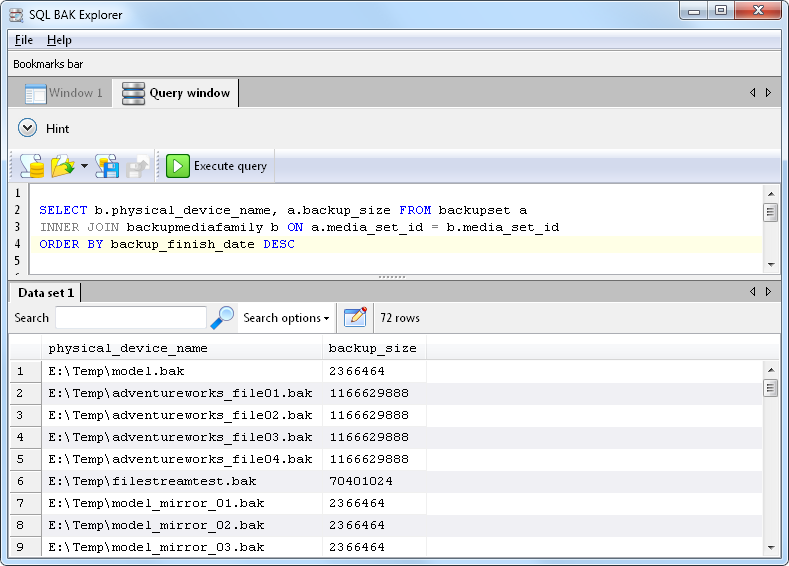
So in the Query Window, you simply enter a query to retrieve the backup details you want e.g.

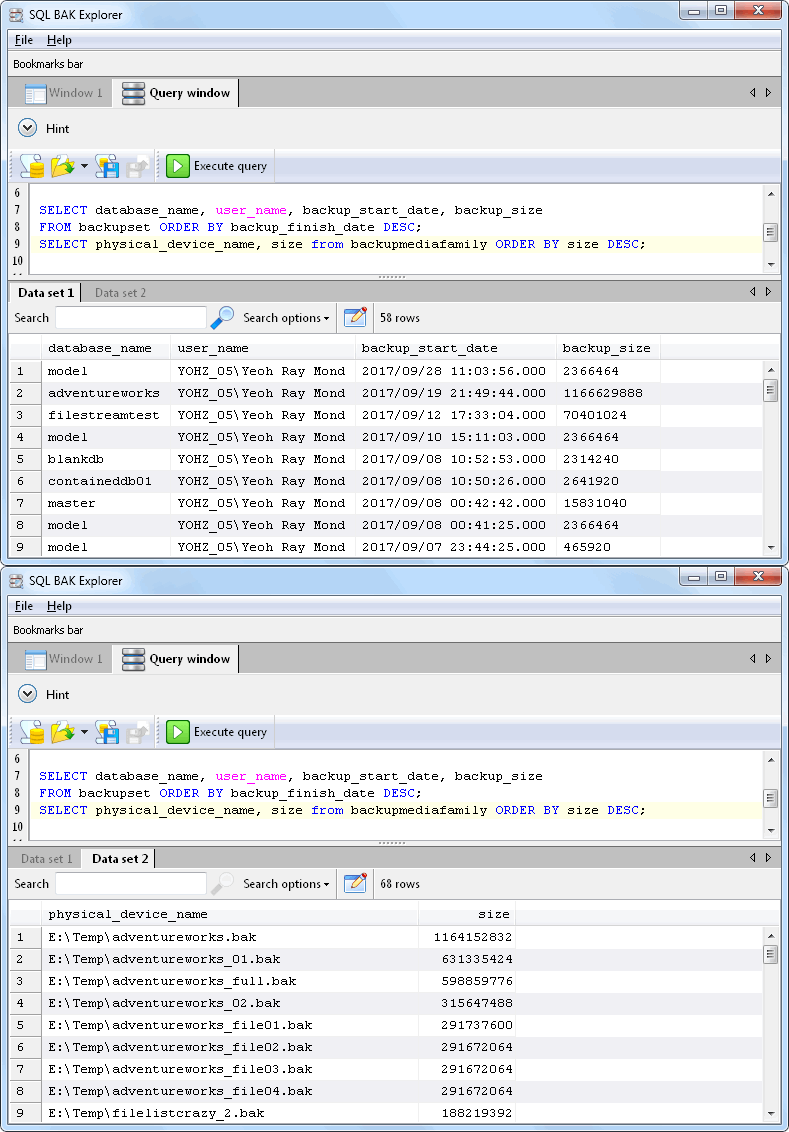
If you want to return multiple result sets, end each query with a semi-colon, and start each query on a new line e.g.

The SQL syntax for SQL Server Compact is fairly similar to the SQL Server syntax, so if you are already familiar with SQL Server query syntax, writing for SQL Server Compact should be easy.

SQL BAK Explorer 1.0 released

We just released SQL BAK Explorer, which is a useful tool to work with SQL Server backup files.  Basically, it can read the backup details off the backup files without requiring SQL Server.  The details it can provide are almost similar to what you can retrieve using the RESTORE HEADERONLY and RESTORE FILELISTONLY commands.  It supports backup files created using SQL Server 2005 up to SQL Server 2017.  However, it doesn’t support encrypted backup files.

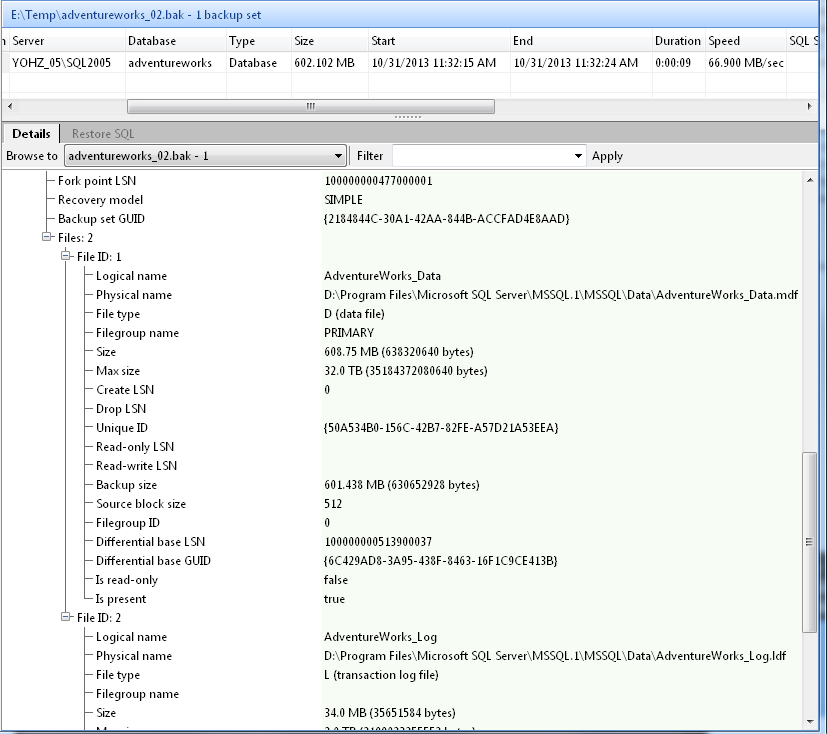
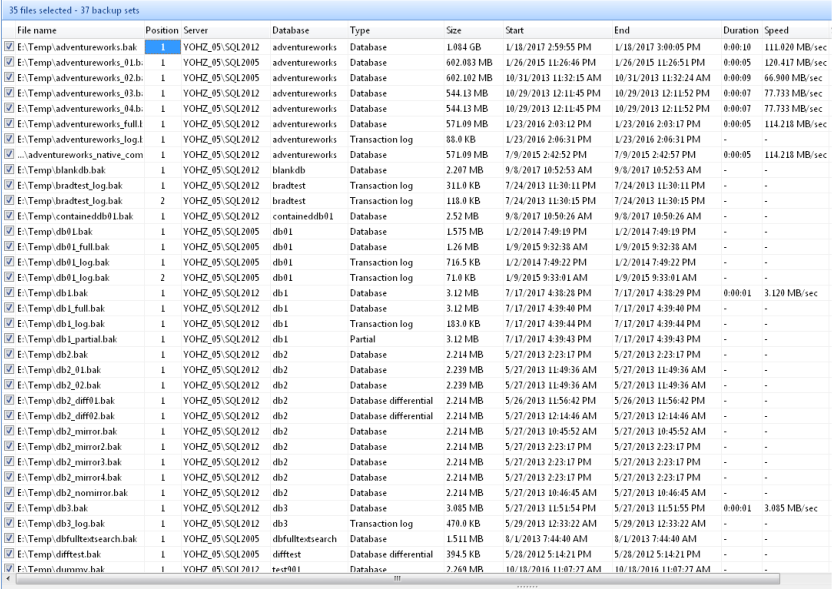
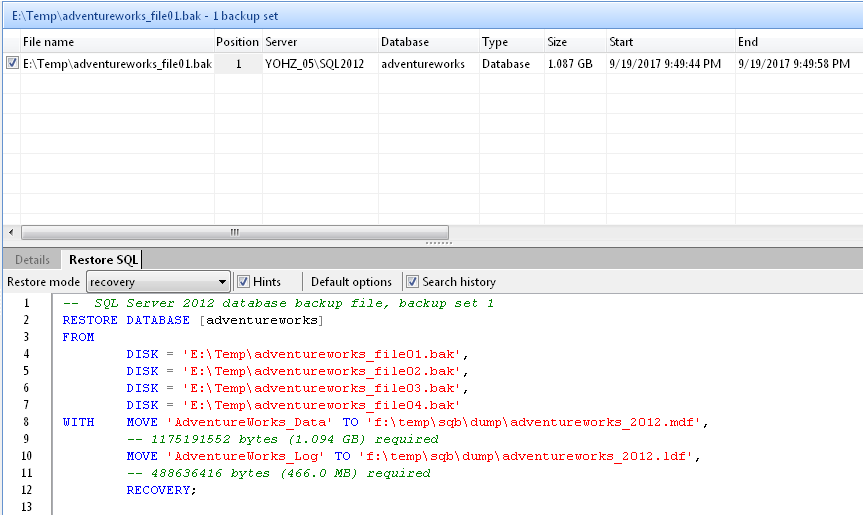
Beyond just listing out the backup details, you can also view the details of multiple backup files simultaneously, in a summary window.  This makes it easy to compare backup set details.

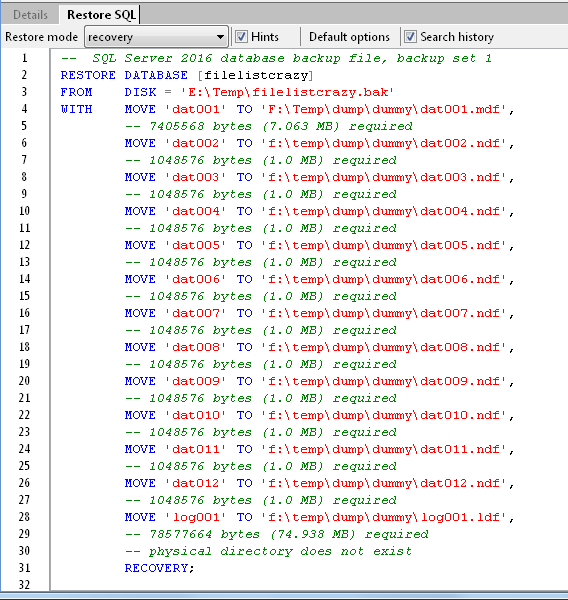
Since we already have the backup details, SQL BAK Explorer can also generate the restore script for you.  The restore script for a full database backup will include the MOVETO options, so that you can easily move the database files around.  Hints are also provided on how much disk space is required.

Each time a backup file is read, SQL BAK Explorer stores the backup details in a local database.  The next time the same file is selected, the details are read from the database instead of re-reading the file again.  This allows the backup details to be displayed very fast.  In addition, SQL BAK Explorer can search this database for files making up a complete backup media set, when generating the restore script for a backup that has been split across multiple files.


If there is anything you would like to see added to SQL BAK Explorer, please do drop us a line at support@yohz.com.

Download the free 14-day trial now, or learn more about SQL BAK Explorer.

SQL Blob Viewer 4 – email notifications added

→ This article refers to SQL Blob Viewer, which has now been renamed to SQL Image Viewer.  The techniques described in this blog is still applicable, as the functionality of the product remains the same.  Only the name has changed.

SQL Blob Viewer 4 was released last month, with a bunch of usability improvements.

One of it is the ability to send email notifications for the export process.  With the Professional Edition, you can schedule export jobs to run using the Windows Task Scheduler.  Previously, the job would run, and a log generated of the export process.  If there were any errors raised, you would only know about it if you inspected the log.

With email notifications, you can now receive a copy of the log via email.  You can also choose to have emails to be sent only when errors are raised.  The email options are configured in the Export Wizard.

logs_emails_01

Before email notifications can be sent, you would need to set up your SMTP mail settings first.

email_settings_01


Linux and Wine compatibility

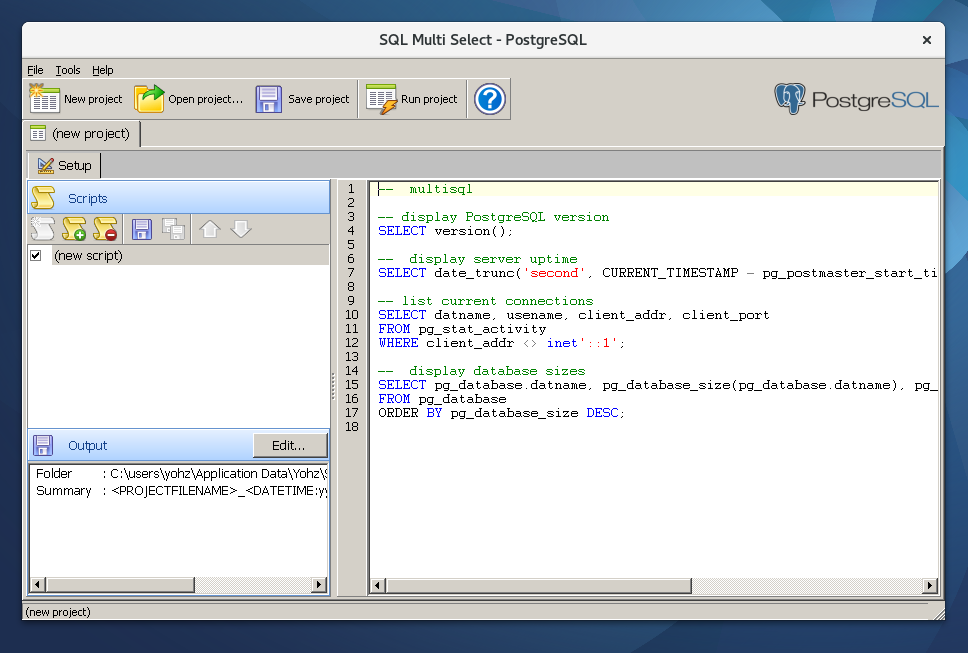
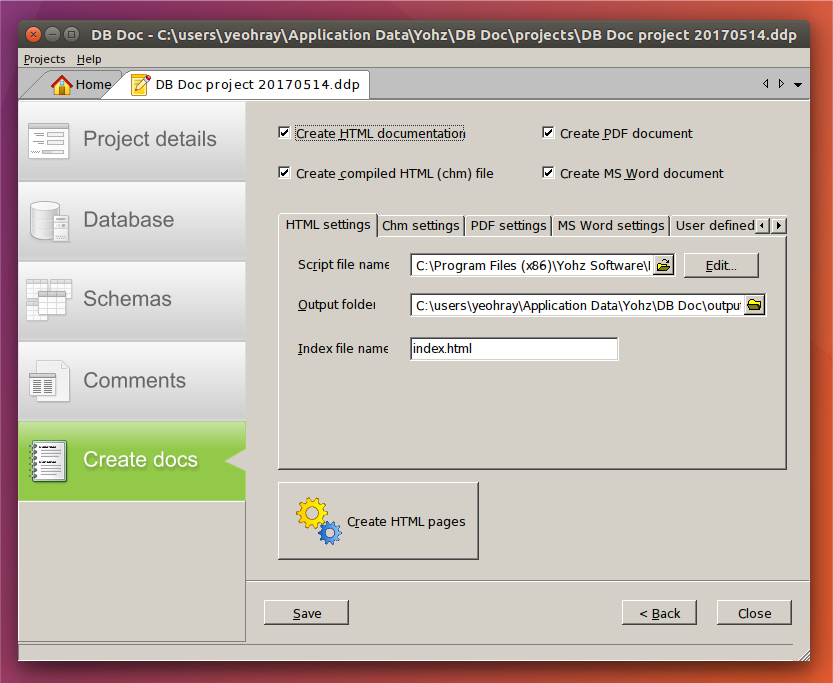
Here at Yohz Software, we receive the occasional email asking if our PostgreSQL-centric products run on Linux.  Being Windows applications, our products will run on Linux but requires Wine (the software, not the drink).  DB Doc has been able to run on Ubuntu since 2014, and we recently installed and ran PgComment and SQL Multi Select on Ubuntu 17.04 and Fedora 25.

SQL Multi Select on Fedora 25 and PlayOnLinux:

DB Doc on Ubuntu and Wine.

There are the occasional GUI quirks, which we try to fix as soon as possible, which is why you sometimes see different text and/or images if you run the same application on Windows.  If you discover any quirks/inconsistencies we have overlooked, please do drop us a line at support@yohz.com.

PostgreSQL statistics

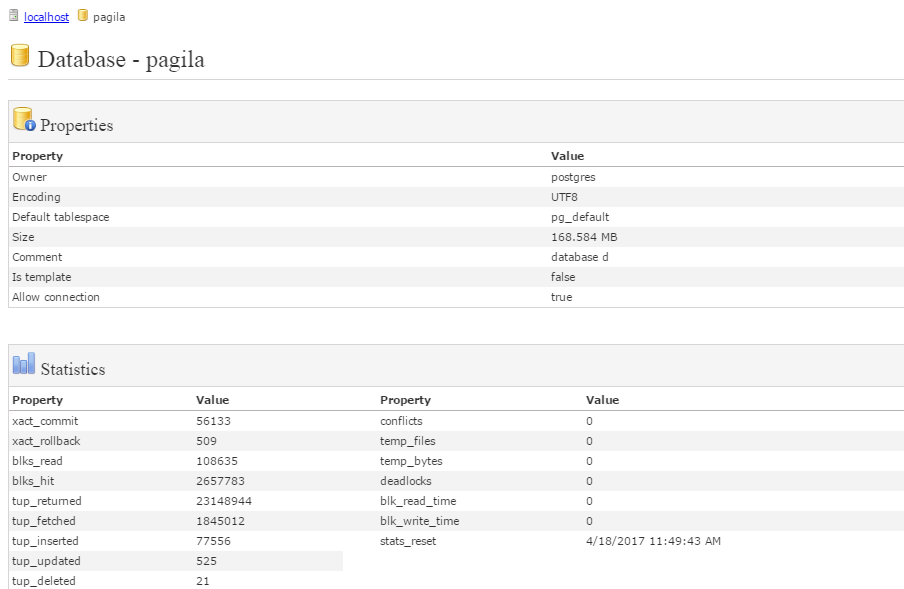
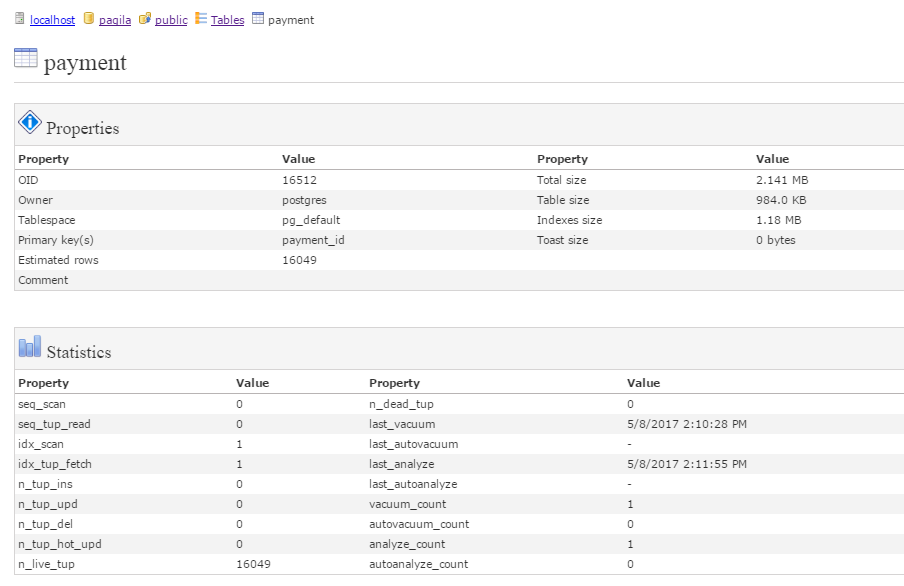
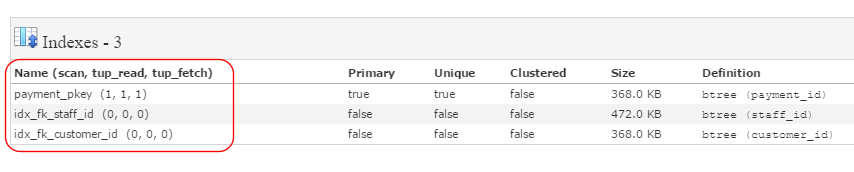
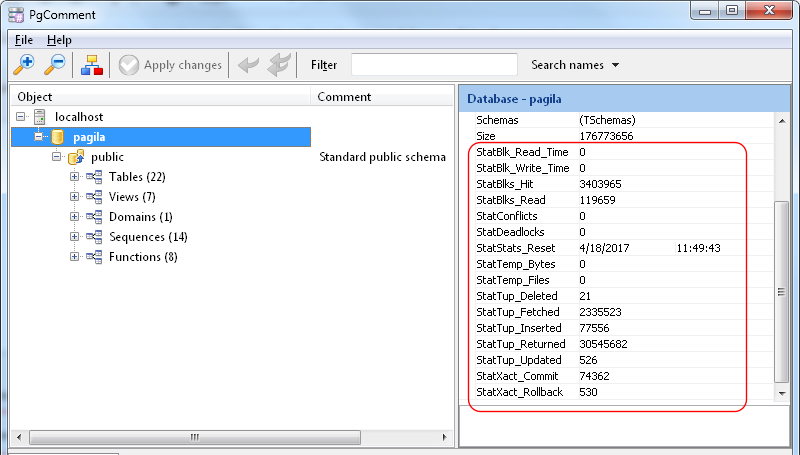
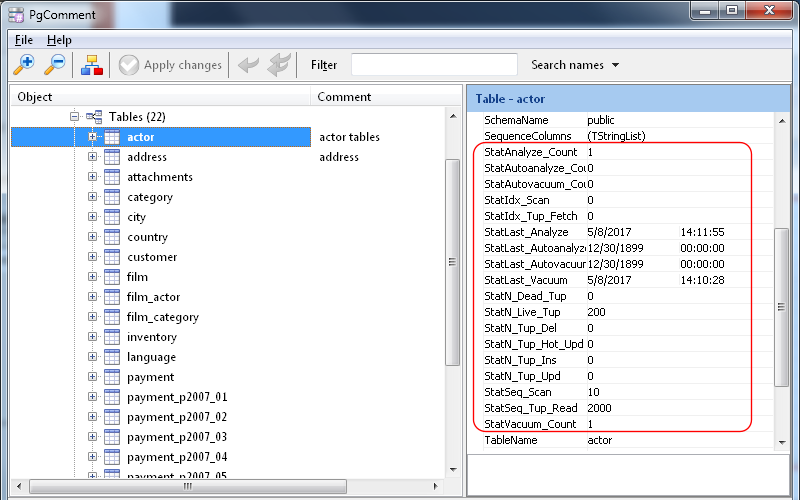
PostgreSQL has a neat set of pg_stat views from which you can obtain statistics for tables, indexes, etc.  From DB Doc 4.2 and PgComment 1.2 onwards, you can now view the database, table, and index statistics in the DB Doc reports and in PgComment object inspector.

In DB Doc, database statistics are displayed on the database properties page

table statistics are displayed on each tables’ properties page

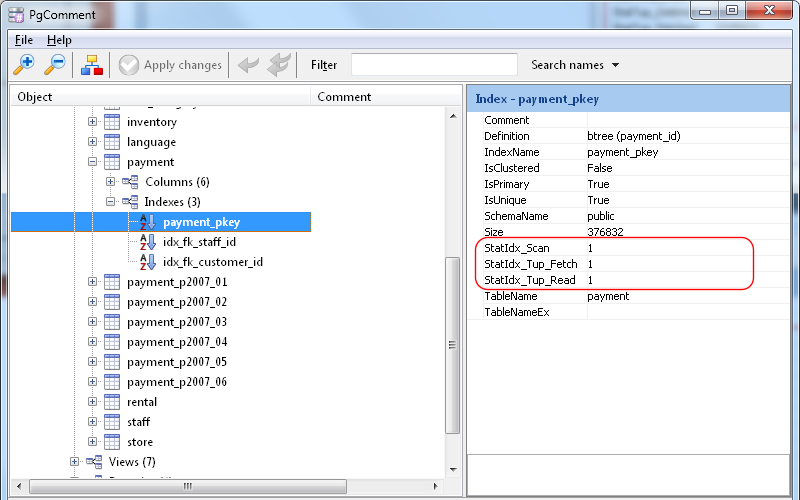
and index statistics (idx_scan, idx_tup_read, idx_tup_fetch) are displayed as part of the index definitions.

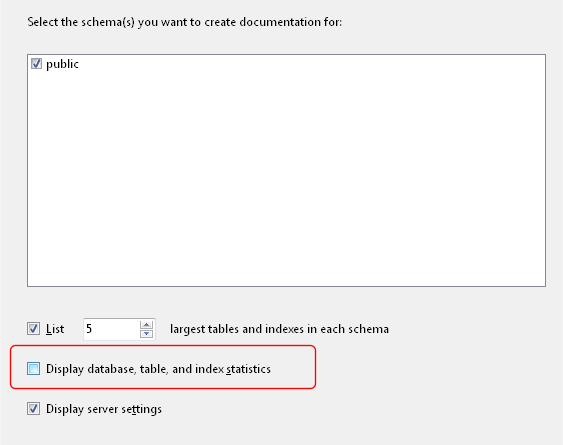
If you choose not to display the statistics, just deselect the Display database, table, and index statistics option.


PgComment, our free tool to easily add/modify comments to your PostgreSQL objects, displays the statistics details in the object inspector window.

– database statistics


– table statistics


– index statistics

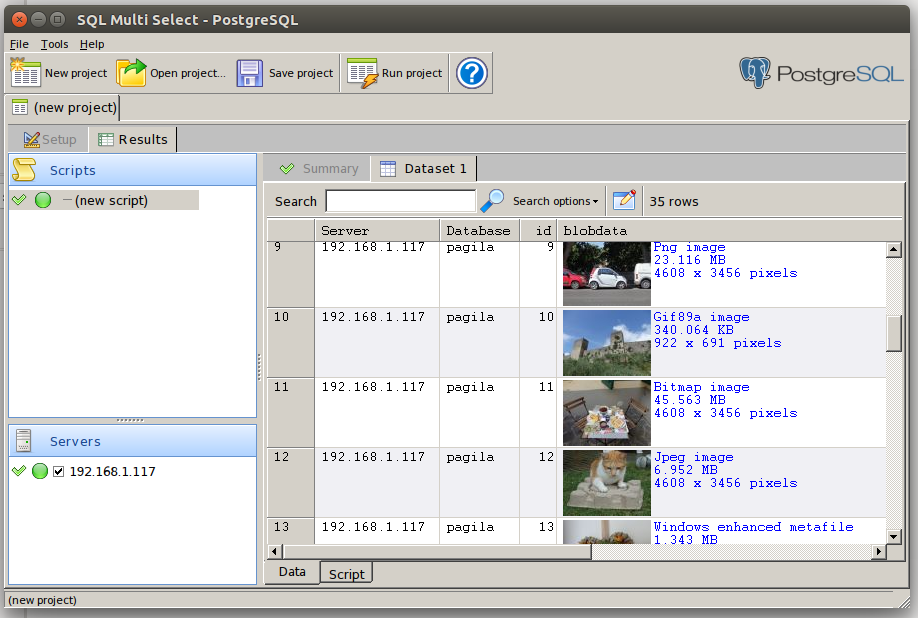
SQL Multi Select on Ubuntu 17.04 and Wine 2.0.1

Well, SQL Multi Select mostly runs on Ubuntu 17.04 with Wine 2.0.1.  Instructions for installing Wine 2.0.1 on Ubuntu 17.04 can be found here.

What works:

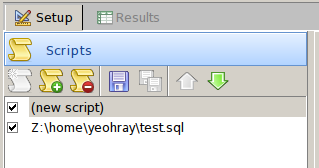
  • running multiple statements in a script
  • using scripts located on Linux file system
  • displaying images in result set
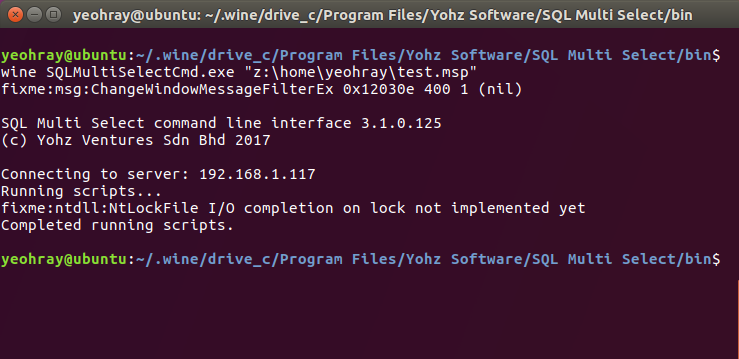
  • using the command line interface to run projects
  • connecting to PostgreSQL databases via SSL connections
  • exporting results to text files and SQLite database

What doesn’t work:

  • clicking on the summary file to open it – you’ll need to manually locate and open the file
  • help file won’t open because it’s in a chm format – use the online help instead (http://www.yohz.com/help/dbdoc/index.html)

If you come across any other functionality that doesn’t work on Ubuntu, please do drop us a line at support@yohz.com.